 GS1 Assistant - Help Document
Downloading Your GTIN Export File for Retailers and Marketplaces
This guide explains:
- when you need an export file
- when you do not need one
- how to download it
- where to upload it
Most Shopify merchants do not need the export file
When you assign GTINs in GS1 Assistant, the codes are automatically written to Shopify’s Barcode field.
Marketplaces like Amazon, Google Shopping, and Walmart use GTINs available in Shopify.
For most marketplace selling, you do not need to download or upload anything else.
When you do need the export file
You only need to download if you want to load products into your member organization's portal so that they appear in Verified by GS1 database.
The export file is mainly used for two situations:
| Situation | Why you need the export |
|---|---|
| Uploading products to your GS1 member portal | Registers products in the GS1 registry |
| Sharing product data with retailers or distributors | Uses product data available in Shopify |
How to download the export file
- Open the dashboard and select the variants you want to export
- Click Download Import File in the action bar at the top right of the variant list.

It’s recommended to use the: OK / Valid filter.
- From the Download box, select your GS1 Member Organization from the dropdown for example, GS1 UK, GS1 US, or GS1 Germany.
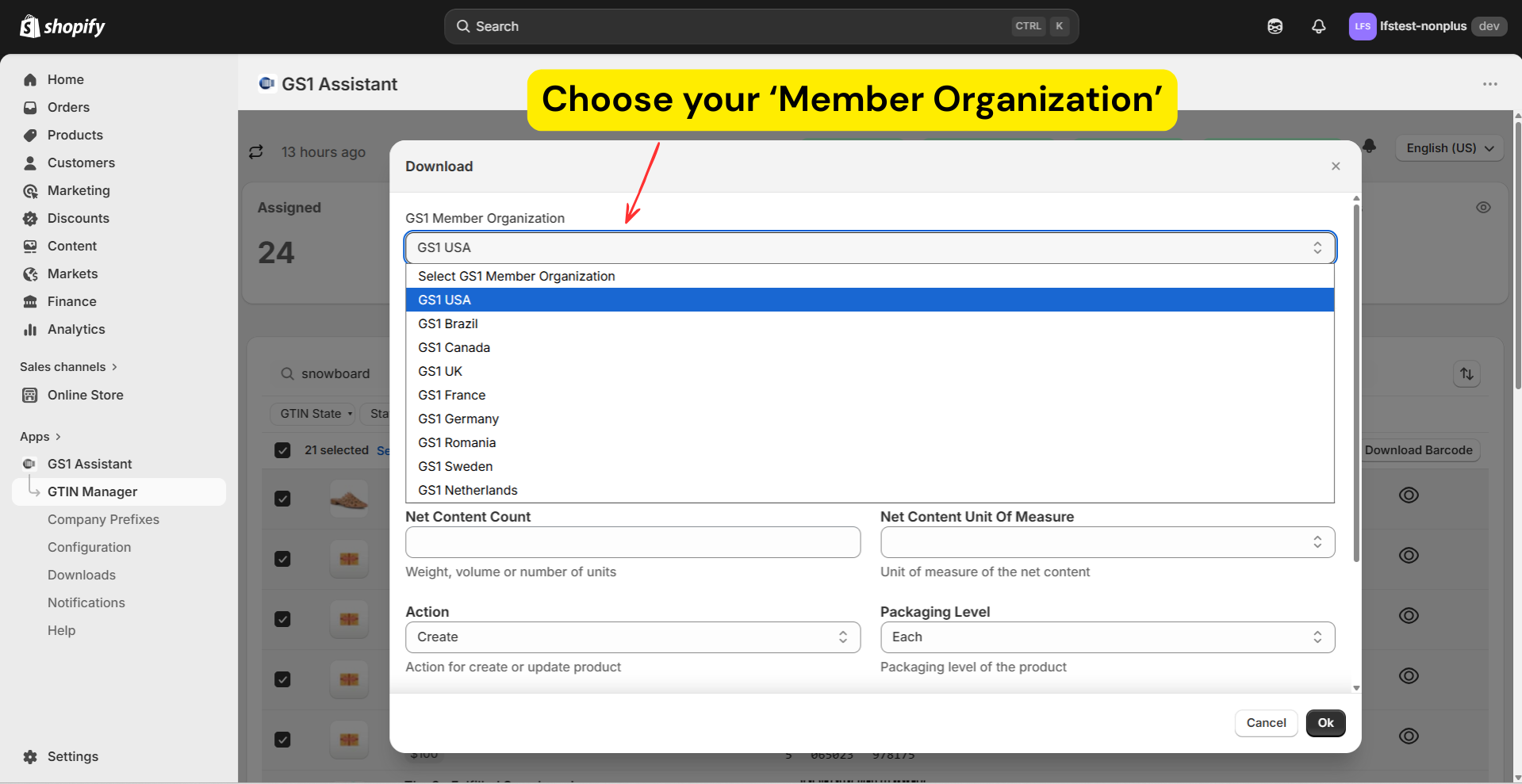
Additional setup for GS1 UK
Some GS1 member organizations require you to start with a spreadsheet or template downloaded from their portal before importing product data.
When this is required:
- Download the template from your GS1 organization's portal
- Upload the template inside GS1 Assistant
- GS1 Assistant merges your GTIN and product data into the file automatically
- Download the completed file and upload it back to your GS1 organization's portal
Example: GS1 UK currently uses this workflow through NumberBank.
Note: The download dialog will indicate when a template upload is required for your selected GS1 member organization.
Complete the required fields
Fill in all fields shown in the Download dialog.
The fields vary depending on which GS1 organization you select. Common fields include Net Content Count, Net Content Unit of Measure, Action, and Packaging Level.
If a Category field appears, use a valid GS1 category code. Do not enter free-text categories or Shopify collection names. Incorrect values may cause the upload to fail at your GS1 organization's portal.
Download the file
Click: OK
The export file downloads to your computer.
Where to upload the file
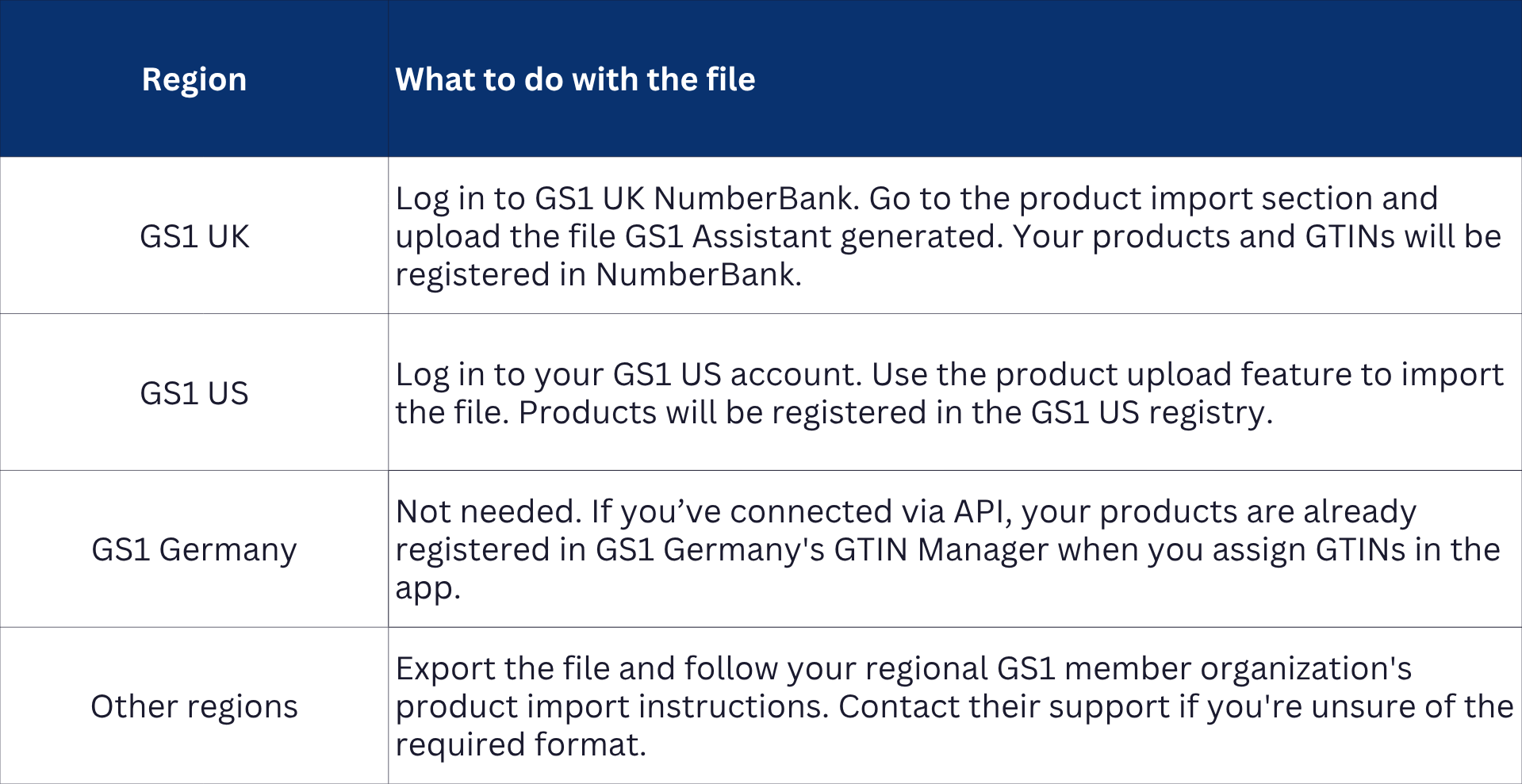
Sharing the file with retailers or distributors
Some wholesale buyers request GS1-formatted product data during onboarding.
The export file can be shared with:
- retailers
- distributors
- EDI onboarding systems
- supplier portals
Read: Selling Wholesale: What Retailers (Nordstrom, Target, Walmart) Actually Require
You do not need to upload immediately
Your GTINs already work inside Shopify as soon as they are assigned.
Uploading to your GS1 organization is usually optional unless:
- you want Verified by GS1 visibility
- a retailer specifically requests it
- your GS1 member organization requires product-level data uploads
For most Shopify merchants selling online, assigning GTINs inside GS1 Assistant is enough.
Re-download previous exports
GS1 Assistant stores your previous export files inside the Downloads page.
You can:
- re-download old exports
- reuse previous files
- send files to additional buyers later
What the Downloads count means
The Downloads count simply tracks how many GTINs were included in export files previously.
It does not affect:
- GTIN validity
- assignment status
- marketplace usage